Crop a PDF: trim margins without sending the document
Crop PDF pages to remove margins or center content, with a visual preview — in the browser, no upload.
Published on 4 min readby Hamza El Hajjaji
This page contains affiliate links: we may earn a commission if you use them, at no extra cost to you. This does not influence our recommendations. As an Amazon Associate, we earn from qualifying purchases.
Table of contents
What cropping is for
Excessive margins from a scan, imposed headers from an export, white zones that dilute content: cropping tightens the visible frame around what matters. Result: a more readable, more compact document, better suited to projection or printing.
Important to understand: cropping defines the visible area of each page (the CropBox). Content outside the frame technically remains in the file — like a cropped photo whose original persists under the frame.
If your goal is to permanently remove content, cropping isn’t the tool. Safe removal requires fully validated rewriting — which is why redaction stays blocked until erasure of underlying data is demonstrated.
Use cases
Homogenizing a PDF assembled from sources with different margins.
Eliminating white borders from a scan before projection.
Recentering content shifted by a poorly calibrated export.
Reducing surface before compression to save weight.
After cropping
A tightened document lends itself well to page scaling or compression for a lightweight send — still in the browser.
Application portals, visa files, supporting documents: how to get a PDF under 500 KB with target-size compression — and what to do when the limit is honestly unreachable.
"Maximum file size: 1 MB" is the most common upload threshold. How to get a PDF under it with target-size compression — in the browser, no upload — and what to do when 1 MB is honestly too small.
A portal demands "one single PDF under 2 MB"? Merging does not compress — here is the right merge-then-compress sequence to stay under the cap, and the honest exits when 2 MB is not enough.
October 30, 2026·7 min read
Read article→
This blog shows ads to fund the service. They only load with your consent — no trackers without it.

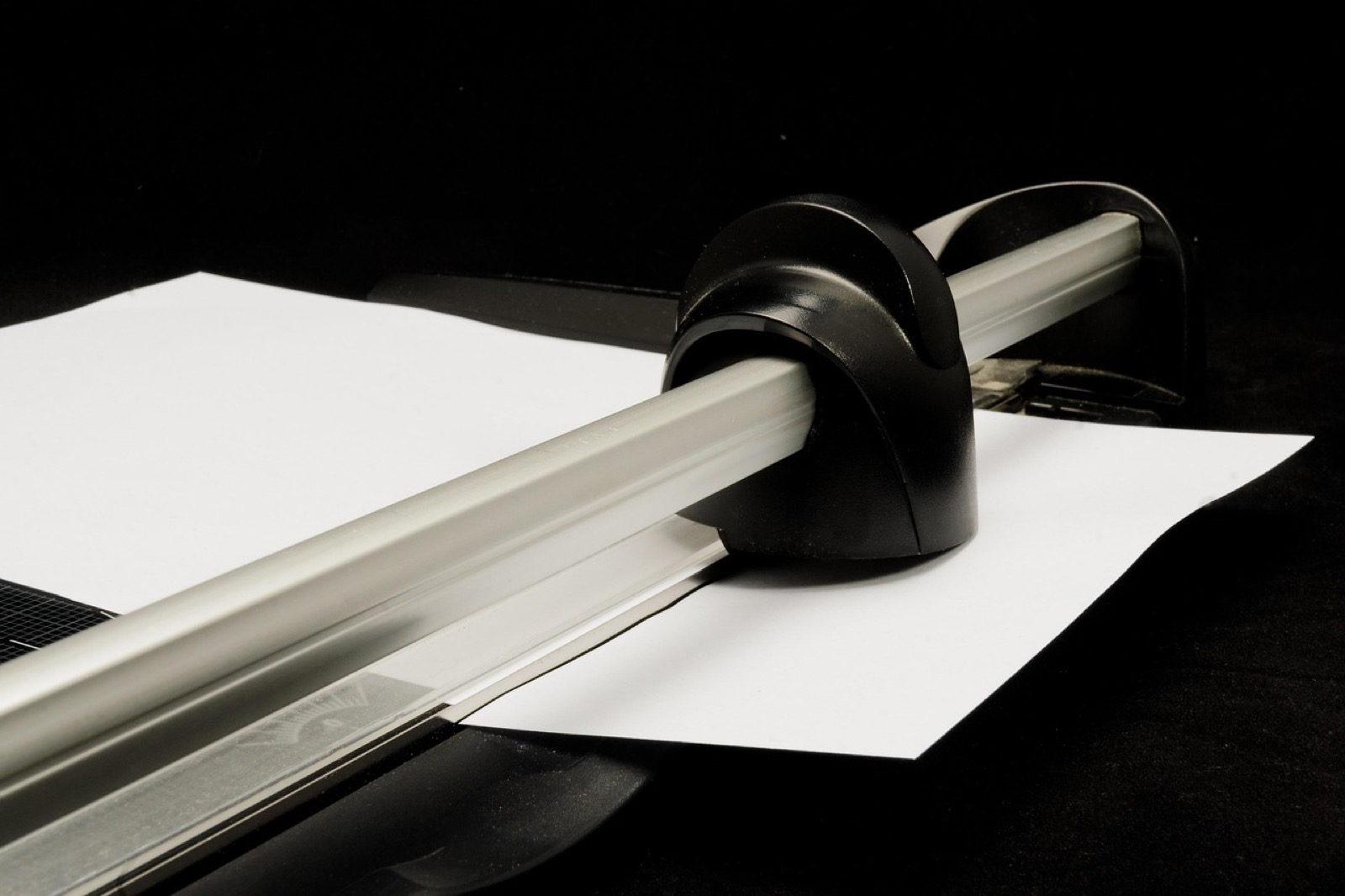
 Fellowes Fusion A4 — paper guillotineTrims up to 10 sheets cleanly: the paper counterpart of PDF cropping.affiliate